Subscribe
You buy OpsPilot on the NubeStack subscription site, and manage seats, license keys, devices and invoices in its customer portal. Below: buying a subscription, giving each person their license key, and changing or cancelling it later. To put the key into OpsPilot, see Activate OpsPilot.
Prices and seats
OpsPilot costs from $5 per user per month, or $50 per user per year. Lower per-user prices apply automatically from 5 seats. Current prices are on the pricing page, https://subscription.nubestack.com/opspilot. Prices are shown before tax; Paddle adds tax and shows your local currency at checkout.
- One seat is one person. Each seat has its own license key, which works on up to 2 of that person's devices.
- Add seats at any time. Fewer seats take effect at the next renewal.
- Annual billing suits offline computers. A license file covers the period paid for, so yearly billing means fewer renewed files to carry to computers without internet.
Buy a subscription
-
Open the pricing page, https://subscription.nubestack.com/opspilot.
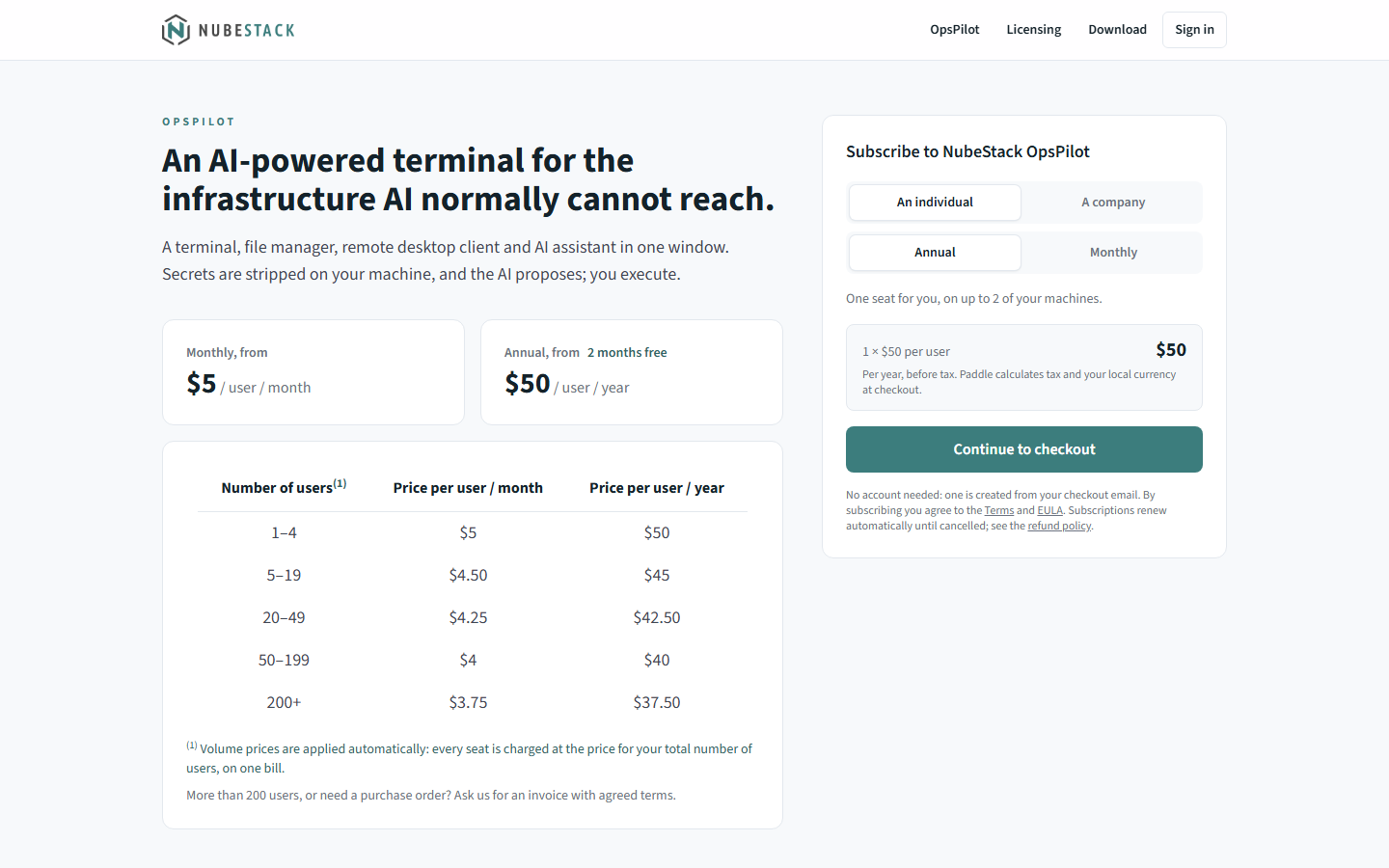 The pricing page. The table gives the price per user for each number of users; the
panel on the right builds your order. Prices can change, so this page, not this
screenshot, is the current price list.
-
In Subscribe to NubeStack OpsPilot, choose An individual (one seat for you) or A company.
- Choose Annual or Monthly.
- For a company, enter the number of Seats: one per person. The total shows the price per seat for that number of seats.
- Choose Continue to checkout. Paddle's secure checkout opens on the same page. Enter your email address and your payment details.
-
When the payment goes through, the page shows Welcome to NubeStack OpsPilot:
- With one seat, your license key, with Copy and Save as a file.
- With several seats, a link to the portal to assign them.
It also offers Open the portal and Download NubeStack OpsPilot.
You need no account beforehand: one is created from the email address you used at checkout. If you are already signed in and your account has an OpsPilot subscription, the panel says so and suggests adding seats to it instead, so you keep one bill and one set of keys.
An email, Your OpsPilot subscription is ready, follows with the same details: the license key for a single seat, or a note to assign seats in the portal. Its Open the NubeStack portal button signs you in; it works once and expires after 72 hours, and after that you sign in with your email address.
Invoices and purchase orders
To pay by invoice, with a purchase order number, net payment terms or bank transfer, or for more seats than the checkout allows, email support@nubestack.com with the number of seats and your billing details. NubeStack issues the invoice through Paddle.
Paddle is NubeStack's reseller (merchant of record): it handles payment and tax, and issues the receipts and tax invoices.
Sign in to the portal
The portal is at https://subscription.nubestack.com/portal. It has no passwords.
- Enter your Email address and choose Email me a sign-in link.
- The email holds a sign-in link and a six-digit code. Both work once and expire in 15 minutes.
- Open the link and choose Sign in. If you read the email on another device, type the code in Code from the email on the computer where you asked to sign in, then choose Sign in with the code.
You can also choose Continue with Google. It works once your Google address matches a NubeStack account; connect it under Sign-in and profile after an email sign-in.
The portal
The menu on the left holds:
- Overview
- OpsPilot, with Seats & keys, Devices, Offline activation, Deployment licenses and Billing & invoices
- Team (company accounts) and Organisation settings, or Account settings for a personal account
- under You: Downloads and Sign-in and profile
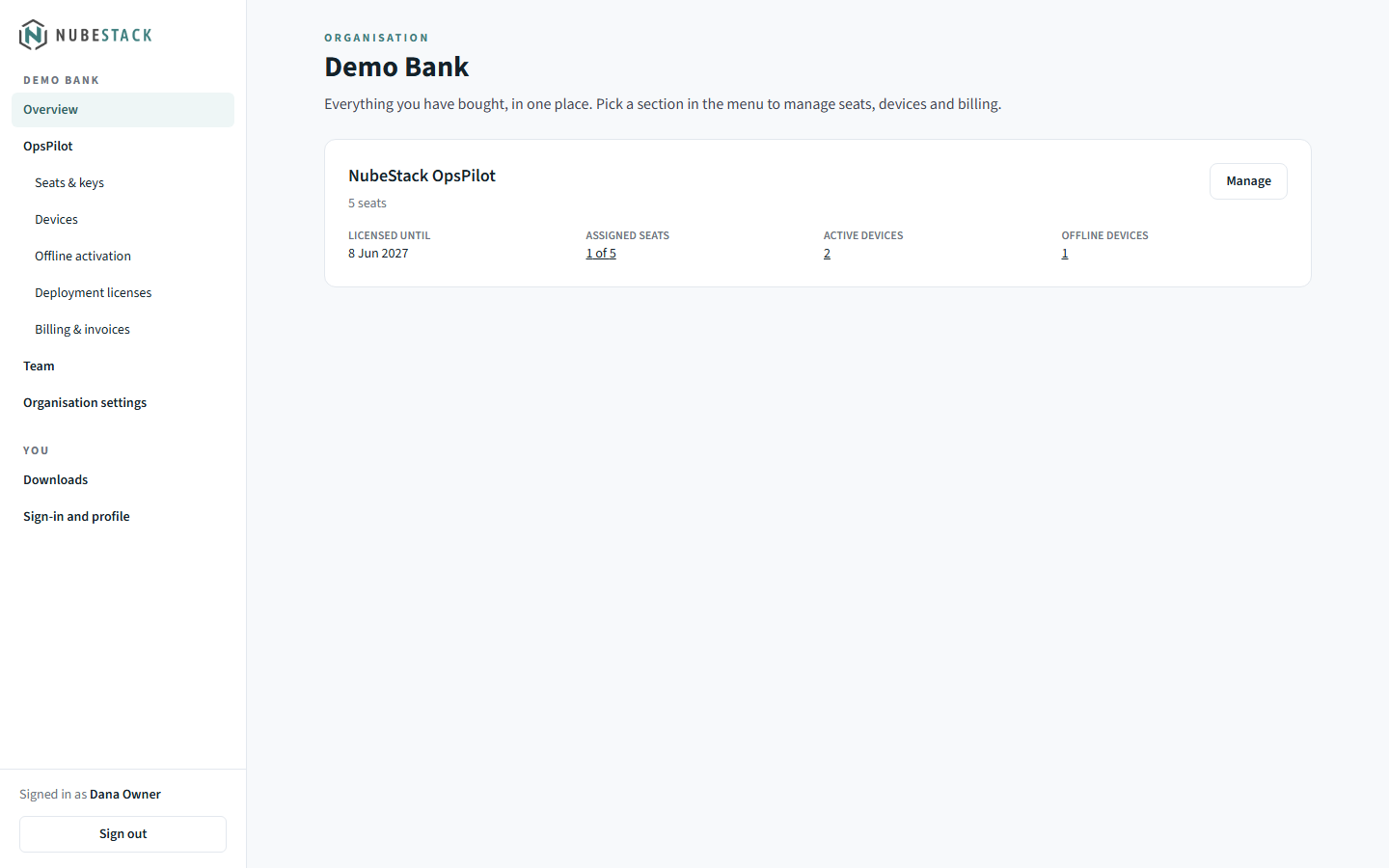 The Overview shows each product you have bought, how many seats are assigned and how
many devices use them. Manage opens the product's pages.
A single-seat purchase without a company is a personal account, called Your account. To use it for a company, open Account settings and choose Use this account for a company. A company's Organisation settings hold its name and legal name.
Give each person a license key
-
Open OpsPilot → Seats & keys. Each seat shows its person, the end of its key, its devices and its status (Assigned, Unassigned, Deployment license, Suspended and others).
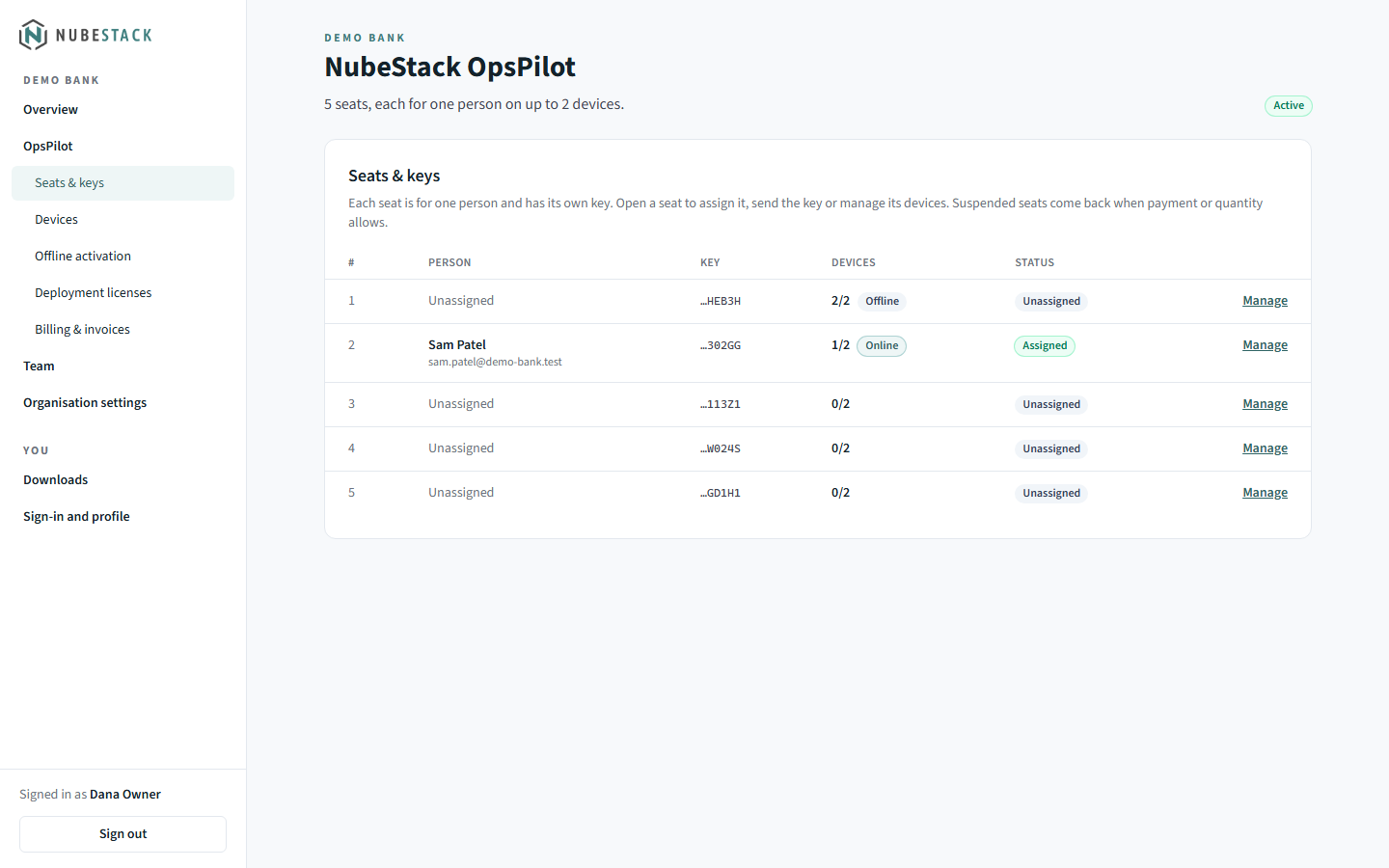 Each seat shows the last characters of its key, how many of its 2 devices are in
use and whether they are online or offline.
-
Choose Manage on a seat. Its page is headed Seat 1, Seat 2 and so on.
- Under Assigned to, enter the person's Name and Email and choose Save. Both are optional: the name appears in OpsPilot as the license holder, and the email lets you send the key.
-
Send the key in one of two ways:
- Email the key sends the key and activation instructions to that address (up to 3 times an hour).
- Reveal key shows the key with Copy, Save as a file and Hide, for you to pass on yourself.
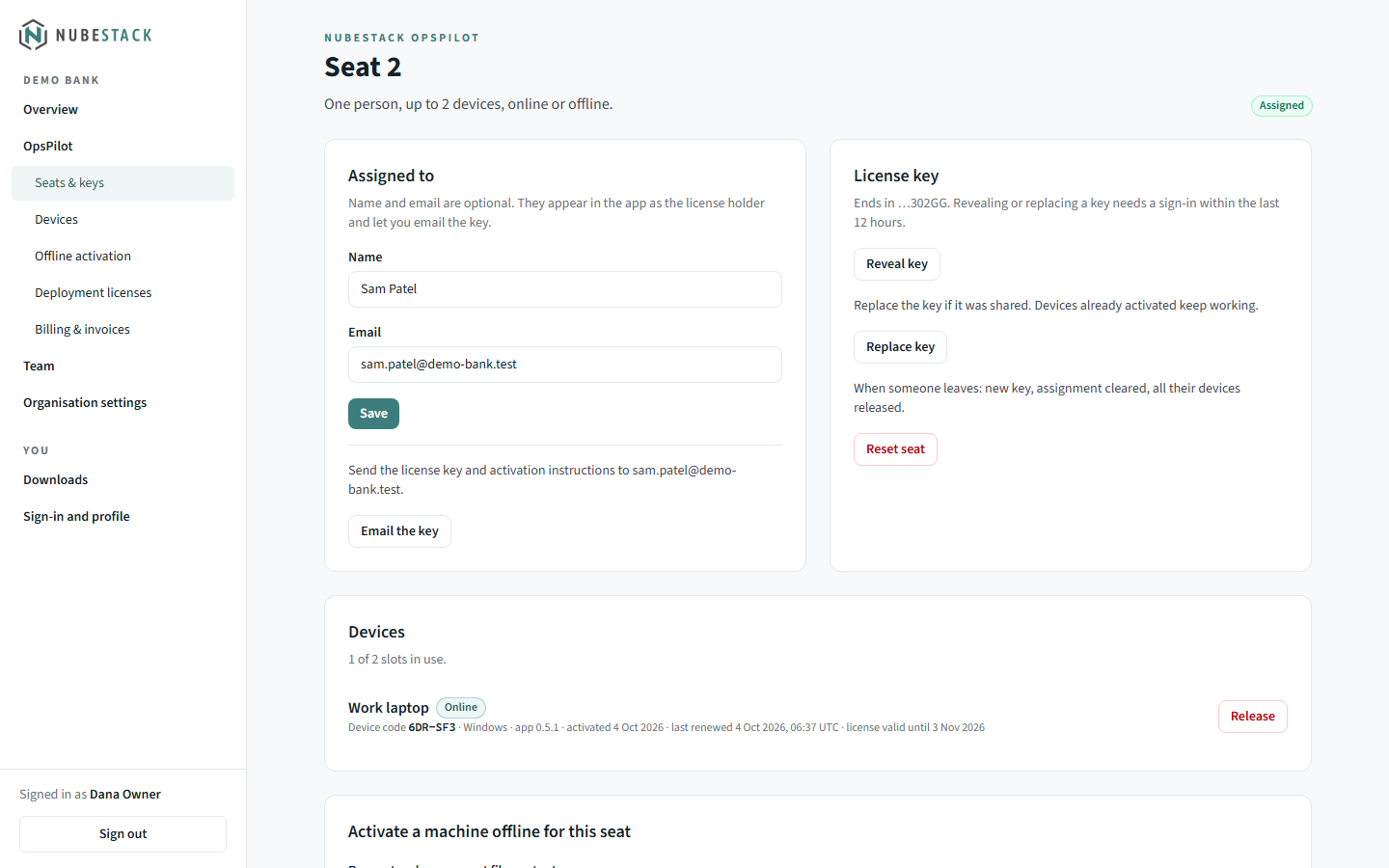 A seat's page holds everything about one person's license: who it is assigned to,
the key, and the devices using it, each with its device code and Release.
The person then activates OpsPilot with the key; see Activate OpsPilot. Treat a license key like a password: anyone with it can use the seat. OpsPilot never stores the key, and redacts one that appears in a terminal before anything reaches an AI provider.
Replace or reset a seat's key
On the seat's page, under License key:
- Replace key if the key was shared by mistake. Devices already activated keep working; the old key no longer activates new devices.
- Reset seat when someone leaves: the seat gets a new key, its assignment is cleared and all its devices are released.
Revealing, replacing and resetting a key need a sign-in within the last 12 hours. If yours is older, the portal asks you to sign in again first.
Change seats or billing
Open OpsPilot → Billing & invoices. The Billing card shows the plan, seats, price, current period and when the license runs until.
- Add seats: enter the new number of seats under Add seats and choose Buy seats. The extra seats are charged now, pro rata for the rest of the period.
- Reduce seats: enter the new number under Reduce seats and choose Schedule reduction. The change applies from the next renewal, with no credit for the current period, and Cancel change withdraws it.
- Switch to annual: on a monthly plan, choose Switch to annual.
- Update payment method and Receipts and billing details open Paddle's customer portal.
Under Payments and invoices, each invoice's number opens its PDF.
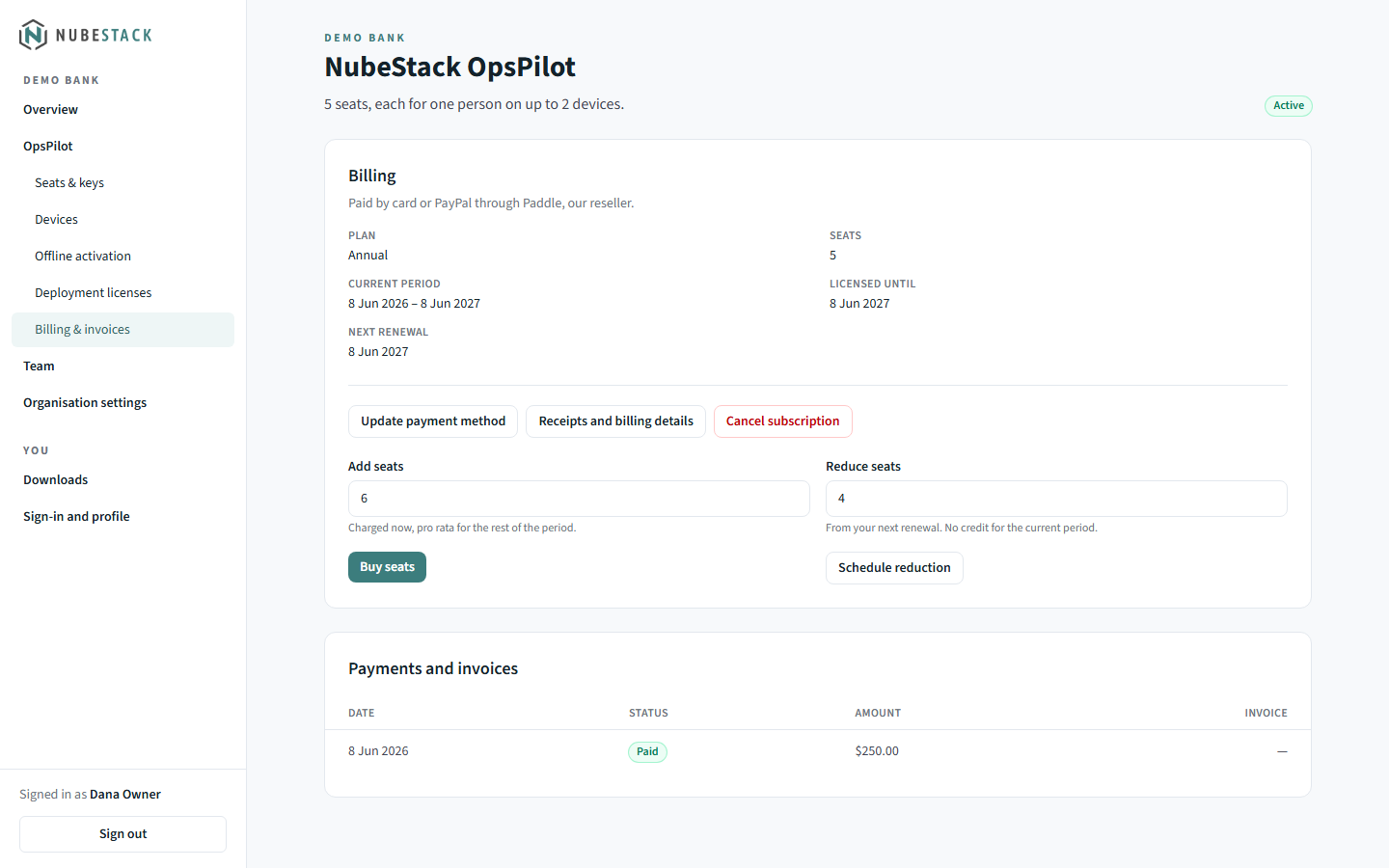 Update payment method, Receipts and billing details and Cancel subscription
open Paddle's customer portal. Seat changes are made here, in the NubeStack portal.
A subscription paid by invoice shows "This subscription is invoiced." instead of these buttons; email support@nubestack.com to change its seats or billing.
Cancel
Choose Cancel subscription in Billing & invoices. Cancelling stops the next renewal. The license keeps working until the end of the period you paid for; after that, OpsPilot applies the limits without a subscription and keeps your configuration (see Free trial and limits).
You can ask for a full refund within 14 days of any payment, for any reason: email support@nubestack.com or use the link in your Paddle receipt. A refund of a new subscription or a renewal also cancels the subscription, and a refund of added seats removes those seats.
Manage licenses as a team
In a company account, Team lists the people who manage licenses in the portal. Use Invite someone to add a colleague by email with a role, and Make owner to hand the account to someone else. People who only use OpsPilot need a seat, not a place on the team.
See also
- Activate OpsPilot: put the license key or a license file into OpsPilot
- Free trial and limits: what changes when you subscribe
- Plans & subscription: the plans side by side
- Licensing for IT: licensing many computers at once