Groups & environments
Three things organise the connection list, and each does something the others cannot: groups carry policy, environments carry colour, and the per-connection AI badge controls whether a model may see the connection at all.
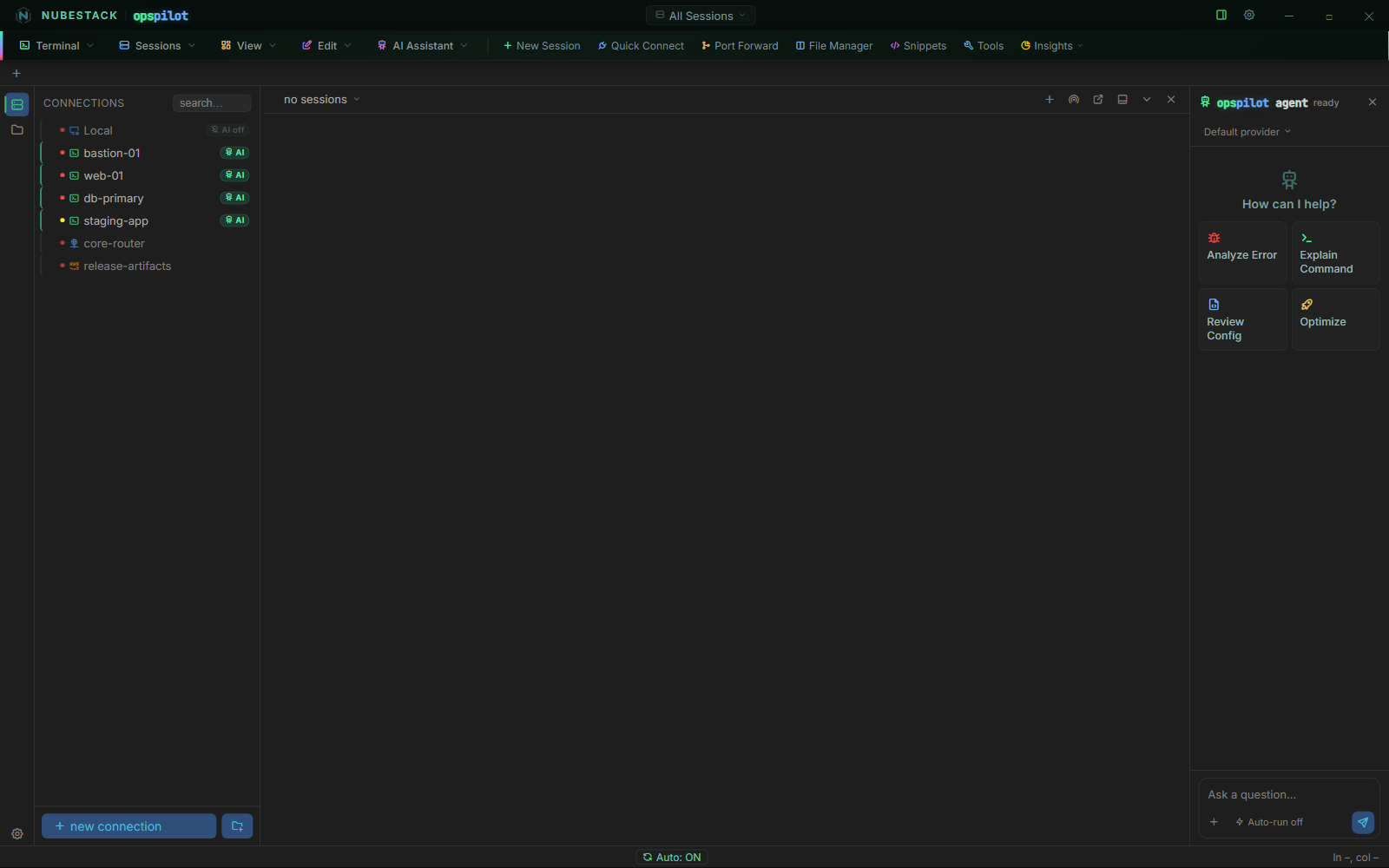
The connection list. Connections sit in groups, a coloured dot on each row marks its environment, and the green AI badge marks the connections the assistant is allowed to see at all.
Groups
A group holds related connections, and it is where policy is applied most efficiently. Right-click a group and you get two entries:
- Command Safety profile… — the profile that decides how commands proposed against connections in this group are classified and gated. See Command Safety profiles.
- Data Handling profile… — the profile that decides what is redacted out of terminal output before any of it leaves the machine. See Data Handling profiles.
Assigning a profile to a group applies it to everything inside it, so draw groups along the lines your policy follows rather than by geography or hostname.
A profile assignment is a replacement, not an addition. A group's profile replaces the Default profile for the connections in it; it does not merge with it. That cuts both ways: a group profile can legitimately be less strict than Default, so a permissive lab profile really is permissive. Resolution runs connection → group → Default, so an individual connection can override its group, and the dialog offers that for SSH connections directly.
Environments
An environment is a colour-coded tag on a connection. production and staging are seeded on a new install; you add, rename, recolour and remove them in Settings → Environments.
The colour appears as a dot on the connection's row and on the session list, and as the coloured edge of the session's own tab, so the environment you are working in is visible before you type anything. Colour-coding a production host red prevents running a correct command against the wrong host.
Renaming or recolouring an environment does not orphan the connections tagged with it: a connection stores a stable key rather than the display name, so the tag survives the edit.
The AI badge
The AI badge on each row shows whether the assistant can see that connection. It is per connection: a connection with AI off is invisible to every model and every assistant, and its output is absent from AI context rather than redacted. You can flip it from the row itself as well as in the connection dialog, so revoking AI access from a host is one click and takes effect immediately.
The badge is only shown for connection types the assistant can work with at all: not the external launchers, not the file browsers, and not Telnet or RSH. In practice that means SSH, which is also the only type whose connections can carry their own profile assignments.
Redaction, risk tiers and the approval gate are all downstream of the badge. If a host must never be seen by a model, the badge is the control, and no provider, prompt or assistant setting reaches around it. See What gets sent.
A three-group setup
The session tab bar, the per-connection AI toggles and the per-group profiles work together. A production estate usually ends up looking like this:
- A Production group with a strict Command Safety profile and a Data Handling profile that also scrubs hostnames and IP addresses.
- A Staging group with a moderate profile.
- A Lab group with a permissive profile and minimal redaction.
The same assistant then behaves differently in each group without anyone changing a setting when they switch tabs: move from a lab tab to a production tab and the classification tightens and the redaction widens, because both profiles resolve from the session's own connection.
Auto-run is the exception. It is a single switch for the workstation rather than part of either profile, so it does not vary by group. If you work in production from the same machine as your lab, leave it off — see Approvals & auto-run.
Auto-run and dangerous-command confirmation themselves live in Settings → Security → Command Safety, and auto-run ships off.
See also
- Command Safety profiles — what a group profile actually changes
- Data Handling profiles — redaction, per group
- Add a connection — where environment, group and AI are set
- Sessions & tabs — working across several hosts at once