Activate OpsPilot
After you subscribe, you activate each computer in Settings → License: online with a license key, offline with a license file, or with an organisation-wide deployment license installed by IT. Each is described below, with renewals, moving to another computer, released computers, clock problems and the messages activation can show.
Activation is optional during the trial; the trial needs none.
How licensing works
- One seat per person. Each seat has a license key (
OPSP-followed by five groups of five characters) that works on up to 2 of that person's devices. - Licenses are signed and checked locally. Every license OpsPilot accepts is signed by NubeStack and checked on your computer against keys built into OpsPilot, so a license works without a network connection and cannot be forged or altered on the way.
- No network is required. Only online activation talks to the license server. Offline activation and deployment licenses make no network connection at all.
| Activate online | Activate offline | Deployment license | |
|---|---|---|---|
| What you need | Your license key | A request code out, a license file in | One file for the whole organisation, from IT |
| Network on this computer | HTTPS to license.nubestack.com |
None | None |
| Renewal | Automatic, about once a day | Import a renewed file after each payment | IT installs the renewed file |
| Best for | Laptops and desktops with internet | Air-gapped and isolated computers | Sites where nothing may leave |
You reach the license settings from Settings → License, from View → License in the menu, from the license chip in the titlebar, or from Manage on the License row of Settings → About.
Settings → License
The page reads from top to bottom:
- The state card: what you have now, such as Free trial · 12 days left or Licensed to Demo Bank PLC, with What this means right now.
- Fix clock, only when the computer's clock needs fixing.
- 1 Get a subscription, in the trial and without a subscription: Subscribe and
the address to open on another computer,
subscription.nubestack.com/opspilot. - Your license, once something is activated or imported: how this computer is licensed, the license files, this computer's device code and, where they apply, Check now, Deactivate this device, Import license file for renewed files, and Open the portal.
- 2 Activate this computer, with three ways to choose from: Activate online, Activate offline and Import license file. Once the computer is licensed, this folds under Use a different license key or file.
- Managed by your organisation: what IT has set on this computer, with Check again. See Licensing for IT.
- This device: platform, device identity, device code, OpsPilot version and revocation list.
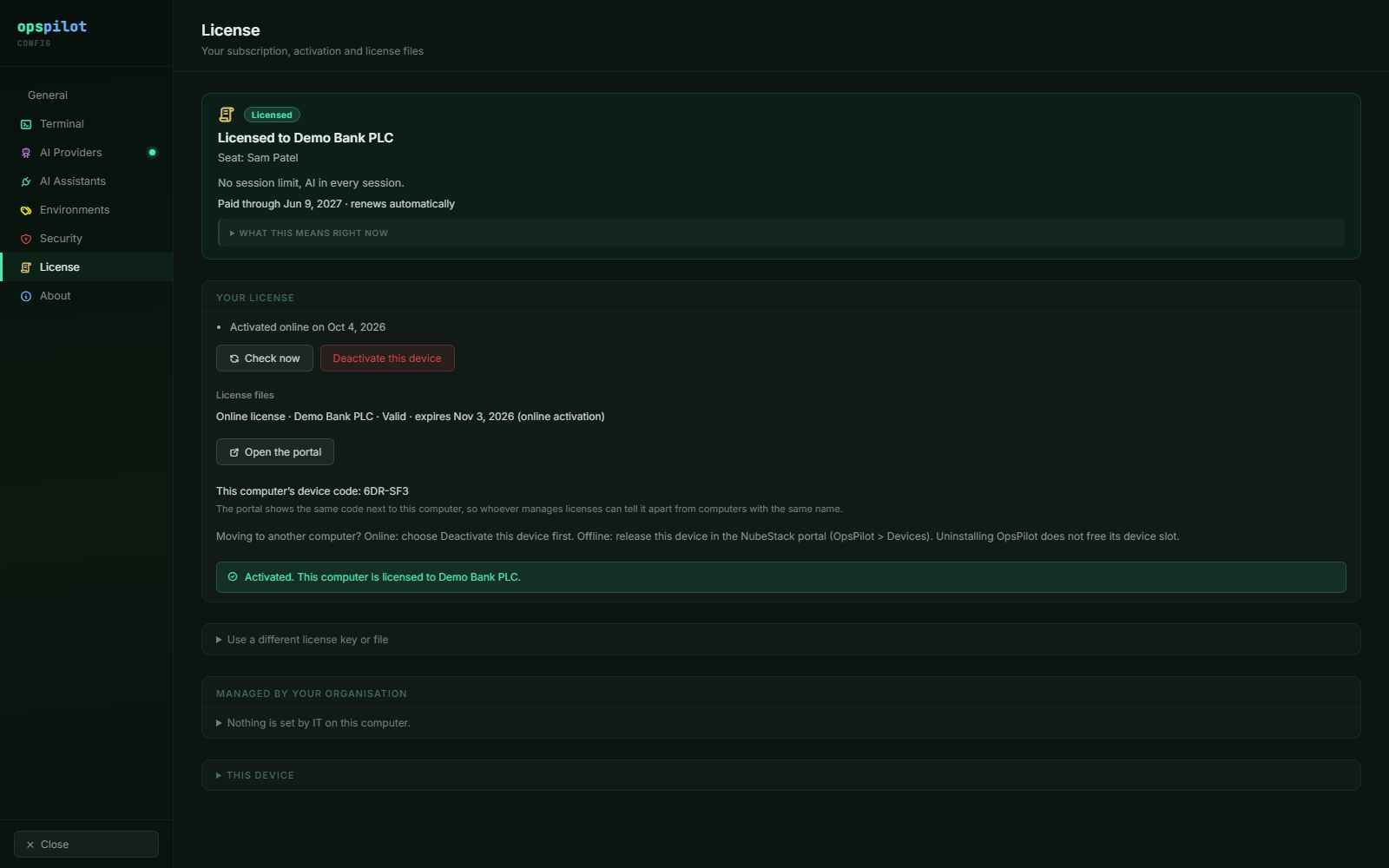 Once the computer is licensed, the state card names the organisation and the seat
holder, Your license shows the online activation and this computer's device code,
and the ways to activate fold under Use a different license key or file.
Activate online
- Open Settings → License.
- Under 2 Activate this computer, choose Activate online.
- Enter your License key. Spaces, dashes and lower case do not matter.
- Optionally enter a Device label, such as "Work laptop", to tell your devices apart in the portal. Avoid real host names if they are sensitive.
- Choose Activate.
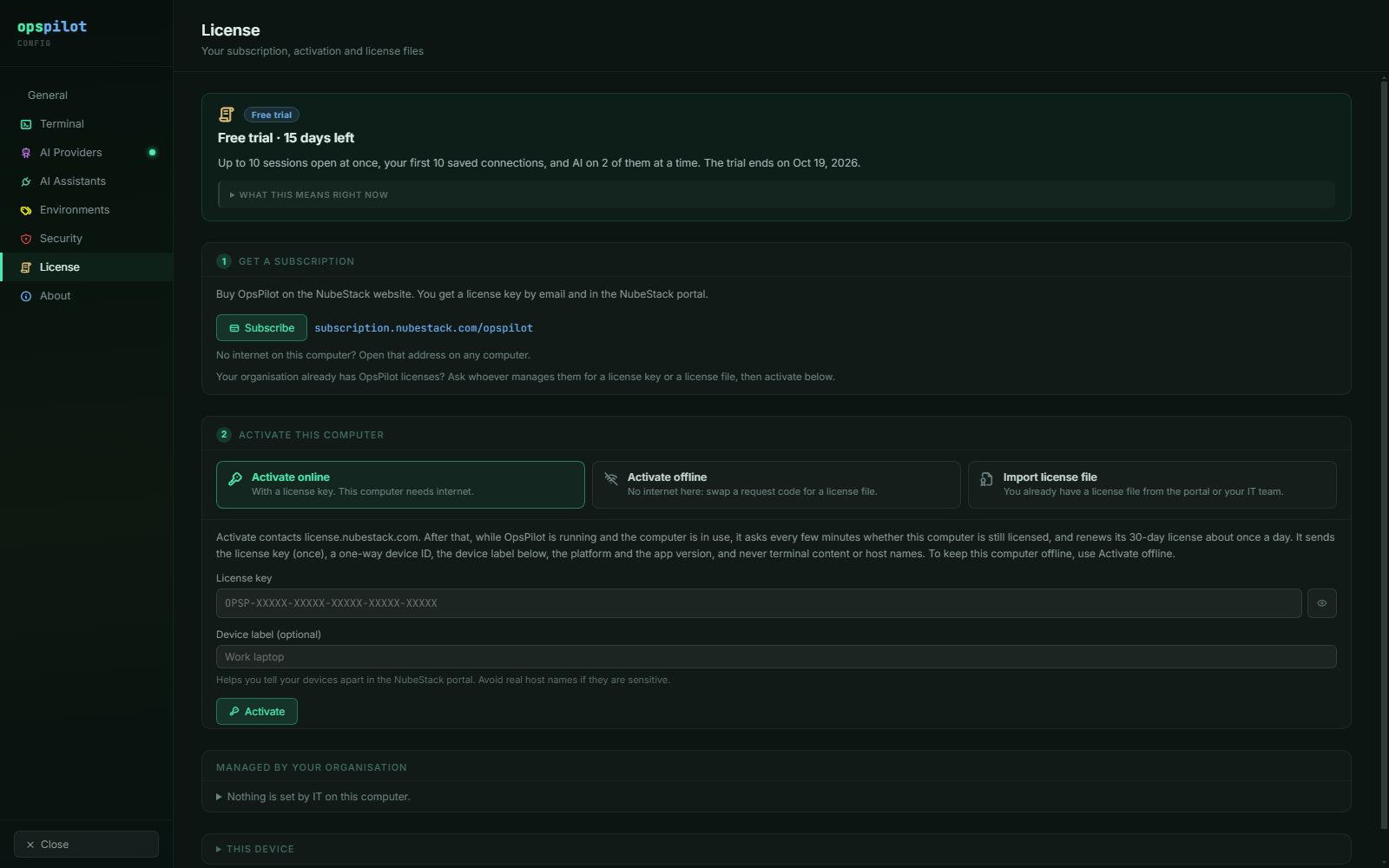 The card says what activation sends before you choose Activate. The key field is
masked; the eye button shows what you typed.
OpsPilot says "Activated. This computer is licensed to" followed by your organisation's name. The steps fold away, and Your license shows the online activation. OpsPilot does not keep the key: it clears the field, and stores only an activation secret, encrypted by the operating system.
What is sent, and how often
| When | What OpsPilot sends to license.nubestack.com |
|---|---|
| Once, at activation | The license key, a one-way device ID, the device label you chose, the platform, the app version, and whether the key was set by IT |
| Every 5 minutes while the computer is in use, and a few seconds after OpsPilot starts, the computer wakes or the screen is unlocked | The activation ID, the device ID, the app version and a proof made with the activation secret, asking only whether this computer is still licensed. The license server does not record this check |
| About once a day | The same, to renew the 30-day license and fetch the latest revocation list. The renewal records when this device last renewed, which your organisation's license managers see in the portal as Last renewed |
"In use" means someone has used the keyboard or mouse in the last 15 minutes and the screen is not locked, or AI is being used on this computer through an AI Assistant or the ChatGPT tunnel. OpsPilot never sends terminal content, host names, user names, IP-derived data or anything about your work.
There is no setting for fewer checks. To keep a computer from contacting the license server at all, use Activate offline, or ask IT to turn online activation off (see Licensing for IT).
If the computer cannot reach the license server, its license keeps working until the 30-day online license ends. After that, AI turns off and OpsPilot asks you to check the network and choose Check now, or to use Activate offline.
Proxies, firewalls and TLS inspection
OpsPilot uses HTTPS on TCP port 443, with the operating system's proxy settings and
certificate store, so proxies and TLS inspection work. Licenses are checked by their
signature, so a proxy cannot change them. Allow license.nubestack.com on your firewall
or proxy if you use online activation.
Secure storage on Linux
Online activation keeps its activation secret in the operating system's secure storage. Windows and macOS always have it. On Linux it needs an unlocked keyring, such as GNOME Keyring or KWallet. Without one, OpsPilot says "Online activation is off because this computer has no secure storage for it" and offers Activate offline instead, since license files need no secret. To use online activation, install and unlock a keyring, then restart OpsPilot.
Activate offline
Offline activation works with no network on the computer. You carry a short request code out, and a license file back in.
- Open Settings → License, and under 2 Activate this computer choose Activate offline.
-
Choose Copy next to the request code: 25 characters in five groups. This computer's device code is shown under it.
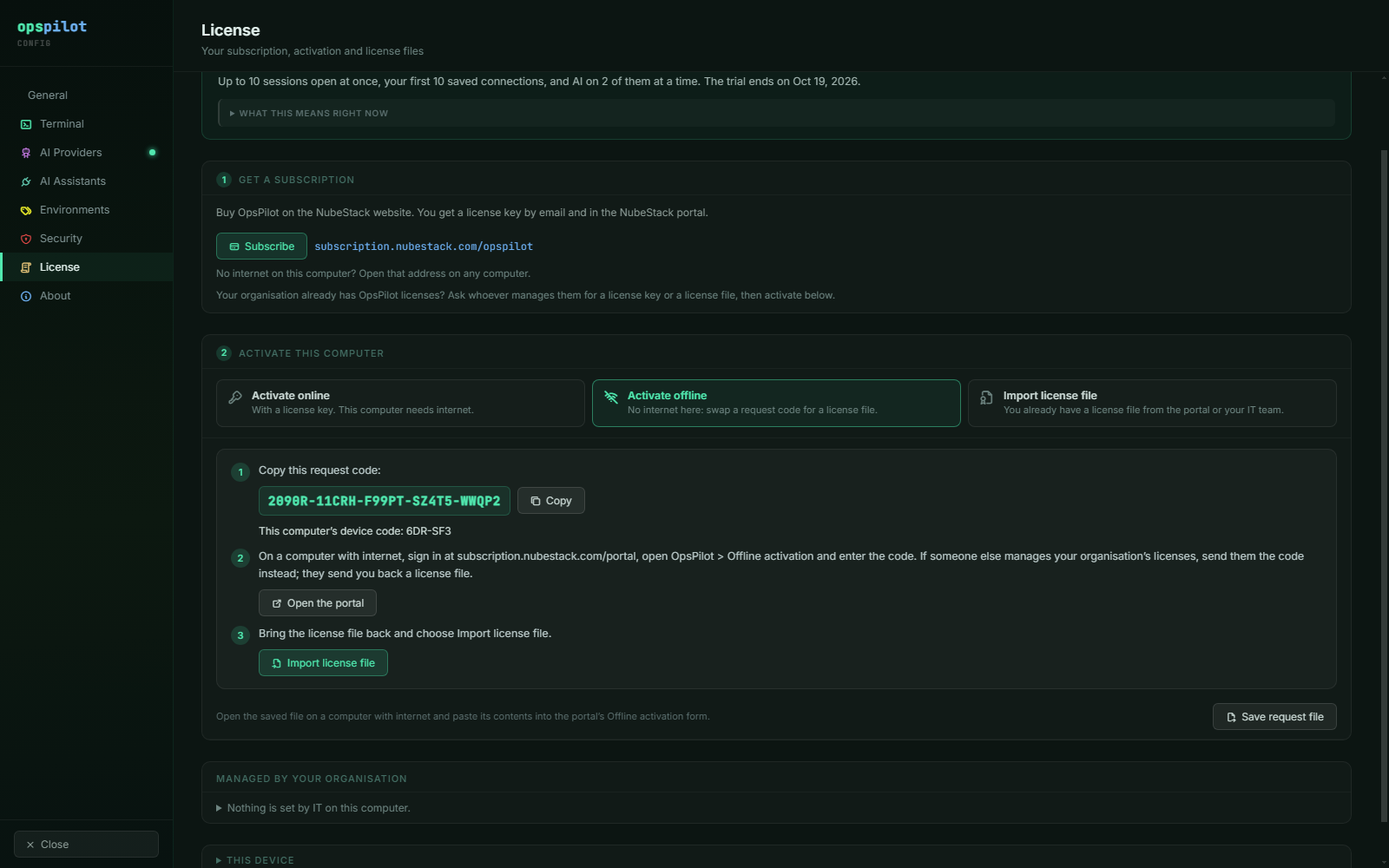 The request code carries no license key and nothing about your work. Save request
file, at the bottom, saves the same request as a file.
-
On any computer with internet, sign in at https://subscription.nubestack.com/portal and open OpsPilot → Offline activation. If someone else manages your organisation's licenses, send them the code instead; they send you back a license file.
-
Under Activate a machine offline, choose the Seat, paste the code into Request code or request file contents, optionally enter a Device label, and choose Download license file.
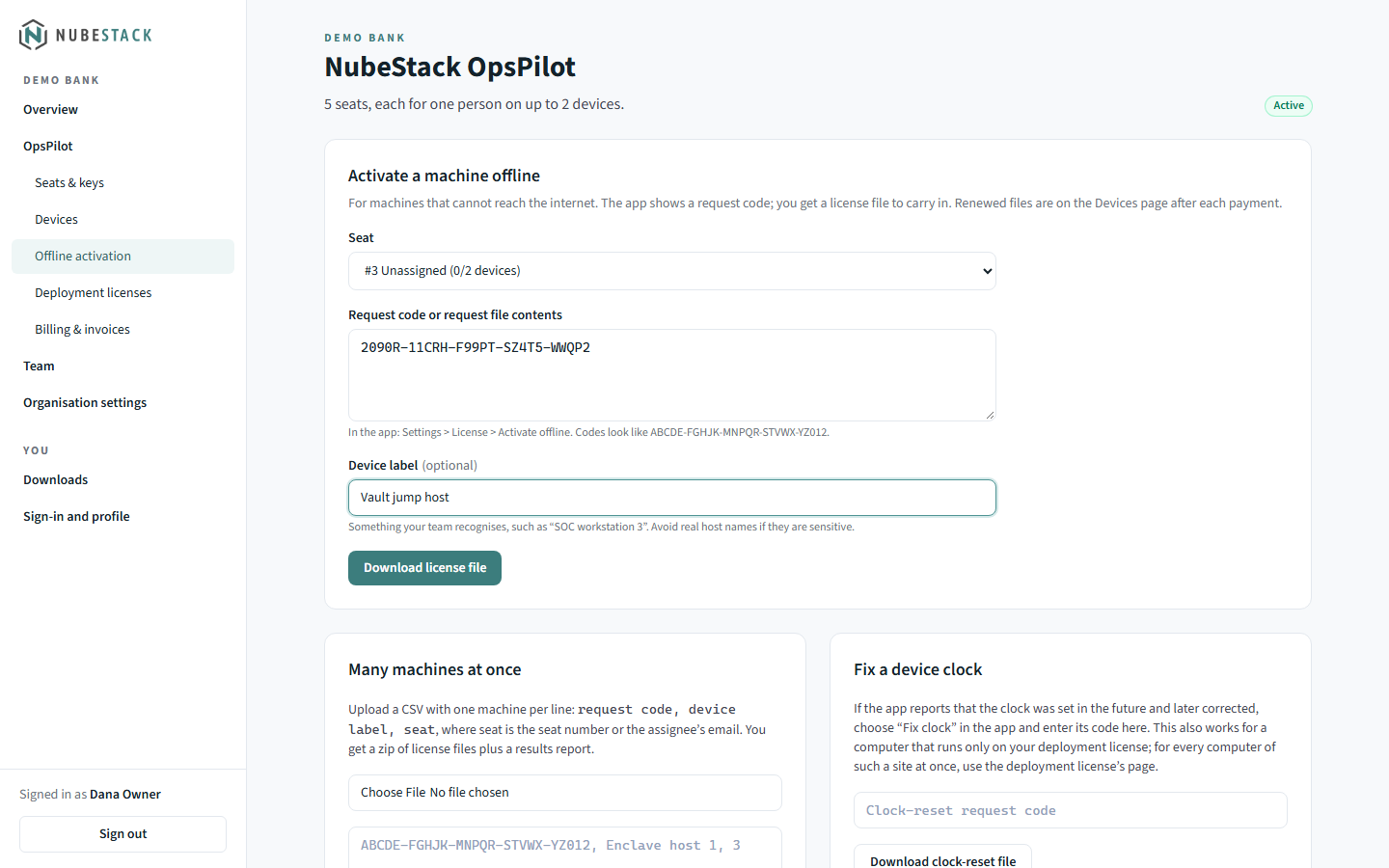 The Seat list shows how many of each seat's 2 devices are in use. Many
machines at once and Fix a device clock are further down the same page.
-
Bring the
.opslicfile to the computer, and in Activate offline choose Import license file.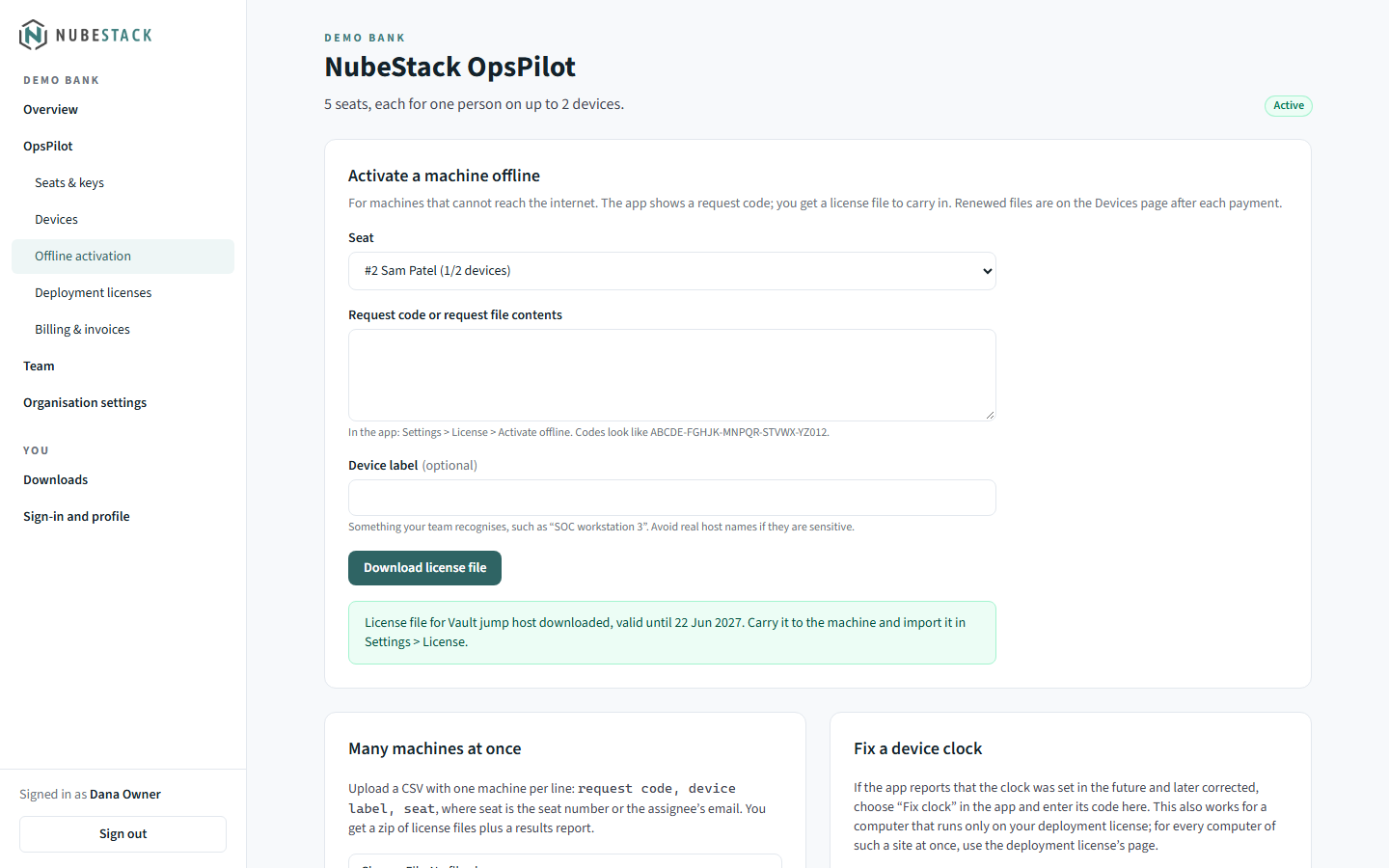 The portal confirms which device the file is for and the date it is valid until.
OpsPilot says "License file imported:", with the name it is licensed to and the date it is valid until. Nothing on this computer touched the network.
- Request file instead of a code. Where a file may leave the site but typing a code is impractical, choose Save request file. On a computer with internet, paste the file's contents into the same portal form.
- Pasting instead of a file. Under Import license file, Paste license text instead accepts the text of a license file, and Import pasted text imports it.
- Copies made on Windows work. A license file saved by Notepad as "Unicode", or by
PowerShell 5.1's
>, imports like any other. - Many computers at once. The portal's Many machines at once form takes a CSV of request codes; see Licensing for IT.
Renew a license file
A license file covers the period paid for, plus 14 days of grace in which every feature keeps working and OpsPilot shows Renewal due. After each payment:
- In the portal, open OpsPilot → Devices. Computers with a renewed file show Renewal available.
- Choose Download file for one computer, or Download N renewed files for a zip of all of them.
- On the computer, open Settings → License → Your license and choose Import license file.
A renewal needs no new request code. The organisation's license managers get reminder emails 30, 14 and 3 days before the newest license files expire.
New annual subscriptions
For a subscription bought by card, the first license file covers about 74 days: the first 60 days of the subscription plus 14 days of grace. From day 60 a full-term file is available, and the portal says from which date when you download the first file. Renew the file once in that window, as above.
Deployment licenses
A deployment license is one license file for a whole organisation, for sites where nothing may leave, not even a request code. It is bound to no single computer: IT installs it in a machine-wide folder, and every computer that holds it is licensed.
- In the portal, open OpsPilot → Deployment licenses and fill in Request a deployment license: Seats to cover (taken from unassigned seats with no devices), Licensed to (the legal name shown in OpsPilot) and Environment. Accept the deployment license terms and choose Request deployment license.
- NubeStack reviews the request. Its status moves from Awaiting NubeStack review to Approved.
- Open the deployment license and choose Download license file. This needs a sign-in within the last 12 hours.
- IT places the file in the machine-wide
licensesfolder on each computer, or a user imports it with Import license file. Check again under Managed by your organisation reads the folder at once.
The seat count in a deployment license is contractual. Renewed files are under OpsPilot → Deployment licenses in the portal. For the folder locations and deployment with GPO, Intune or Ansible, see Licensing for IT.
Move to another computer
Each seat holds up to 2 devices. Uninstalling OpsPilot does not free a device's place.
- Online: on the old computer, open Settings → License and choose Deactivate this device, then activate on the new one.
- Offline, or a computer you no longer have: in the portal, open OpsPilot → Devices and choose Release on the old computer.
- Remove from this computer only removes the online activation without telling the license server. The place stays in use until you release the device in the portal, or until it frees itself after 45 days without contact.
Reimaging a computer or moving to new hardware gives it a new device identity, so it needs activating again.
Device codes
Several computers often have the same name, such as "OpsPilot on Windows". The device
code, six characters such as R59-EFG, tells them apart. OpsPilot shows it under
Your license, next to the request code in Activate offline, and under This
device. The portal shows the same code next to each device on the Devices page and
in the release confirmation. Match the code before you release a device. The code only
identifies the computer; it licenses nothing.
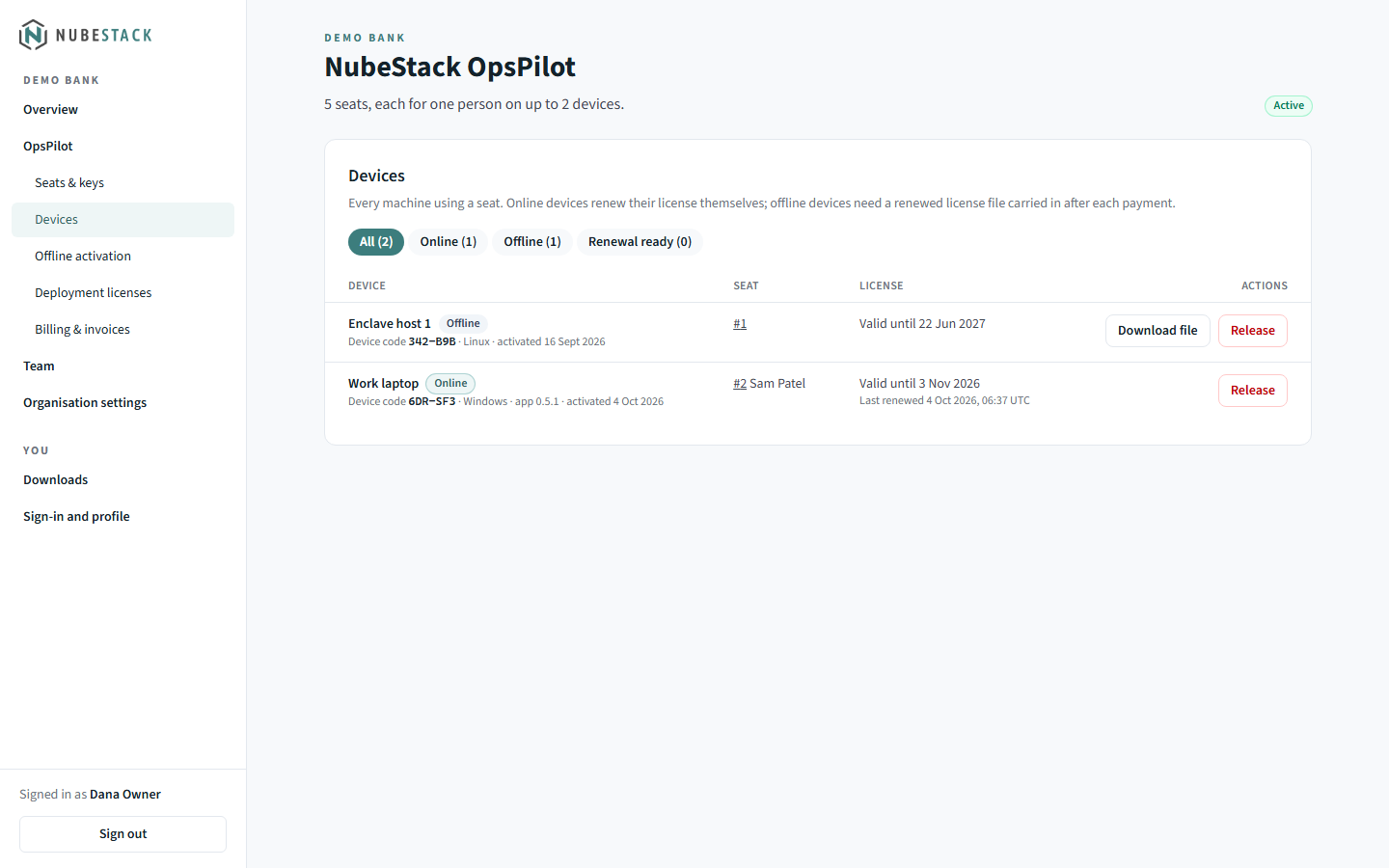 Each device shows its device code, Online or Offline, and the seat it uses. Online
devices show when they last renewed; offline devices have Download file for their
renewed file.
When a key is already in use on 2 devices, activation says so and lists the two devices with their device codes, with Manage devices in the portal.
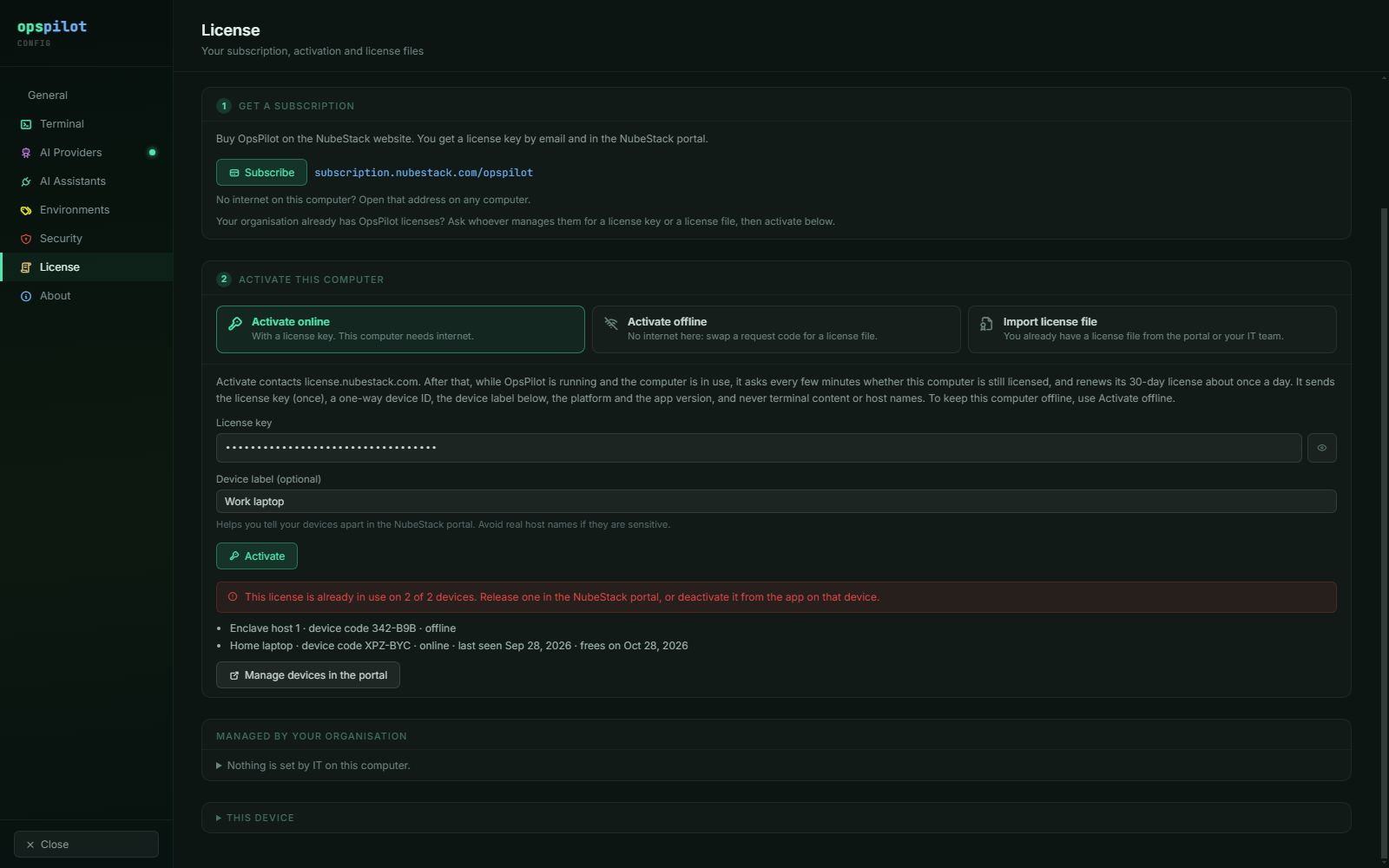 The list gives each device's label, device code and whether it is online or offline,
and for a released device the date its place frees.
When a released place frees
A released device's place usually frees at once. Immediate releases are limited each month; once they are used up, the place frees when that device's current license would have ended, and the portal says on which date. An online device that has not renewed for 45 days is released automatically.
Released computers
When a computer is released in the portal, the license server cannot reach it, so how soon it stops using that license depends on the computer:
| The computer | When it stops using the license |
|---|---|
| Activated online, OpsPilot open and the computer in use | Within about 5 minutes |
| Activated online, idle or locked | Soon after someone uses it again, or seconds after it wakes or is unlocked |
| Activated online, OpsPilot closed or the computer off | Seconds after OpsPilot next starts with a network |
| Activated online, but offline or with the license server blocked | When its 30-day online license ends |
| A license file or deployment license | When a revocation list reaches it (with an OpsPilot update, or imported by IT), or when the file expires |
AI then turns off, unless the computer is still in its trial or holds another license. The terminal keeps working, no session is closed, and an AI answer already being written finishes.
OpsPilot then says who released the computer, in a notice below the tabs that never takes the keyboard from your terminal, and in Settings → License:
| Notice | What happened | What to do |
|---|---|---|
| This computer was released from its subscription | You, or whoever manages licenses in your organisation, released it in the portal | Activate it again with a license key to use AI here |
| This computer's license key was replaced | Your organisation gave the seat a new key; the old one no longer works | Ask for the new key |
| NubeStack support released this computer | For example after it was reported lost | Ask whoever manages licenses in your organisation |
| Released after 45 days without renewal | The computer was switched off or offline all that time | Activate it again with your key |
If the subscription had already ended when the computer was released, OpsPilot goes on saying that the subscription ended, with the same limits, until it is paid again; then it says that the computer was released, and why.
Dismiss on the notice hides it. The explanation stays in Settings → License until you choose Dismiss there.
A computer whose key IT set in policy.json does not activate again with that key by
itself after such a release; see Licensing for IT.
Clock problems
OpsPilot compares the computer's clock with the times in its signed licenses and with the latest time it has seen. If the clock was set back, or was once set far ahead and then corrected, it cannot tell how long a license or the trial has really run, so AI pauses. The terminal keeps working, with up to 10 sessions open at once and every saved connection usable. The titlebar shows Clock problem · AI paused, and a banner offers Fix clock.
- Correct the computer's date and time. OpsPilot checks again every minute; Check again under Fix clock checks at once.
- If the clock is right and the problem stays, it was once set to a later date. Then:
- Online activation: choose Check now. An answer from the license server repairs the clock record.
- License file: use a clock-reset file. Copy the code shown under Fix clock (or choose Save clock-reset request file). In the portal, open OpsPilot → Offline activation → Fix a device clock, enter the code and choose Download clock-reset file. Back on the computer, choose Import clock-reset file. The file works once, on that computer, within 7 days.
- Deployment license only: whoever manages licenses opens the deployment license in the portal and uses Repair a computer's clock: one file for every computer of the site, or one for this computer from its code. Email NubeStack support under Fix clock reaches support@nubestack.com, who can issue either file. See Licensing for IT.
- Trial: AI comes back once that later date has passed. Activating a license online also repairs it.
A clock-reset file licenses nothing, and it can never set the clock record earlier than the day the file was made. Small corrections need no repair: OpsPilot accepts setting the clock back by up to 48 hours in total.
Messages during activation
| OpsPilot says | Meaning | What to do |
|---|---|---|
| That license key is not valid. Check it for typos. | The key is mistyped or does not exist | Check the key; ask whoever manages licenses in your organisation for it |
| This license key belongs to a different NubeStack product. | The key is for another product | Use your OpsPilot key |
| This license is already in use on 2 of 2 devices. | Both of the seat's device places are taken | Release a device in the portal, or deactivate it on that device; match the device codes OpsPilot lists |
| This seat is suspended. | The seat is suspended, for example after seats were reduced | Ask whoever manages licenses in your organisation |
| The subscription for this license is not active. | The subscription ended or a payment failed | The account owner renews it or updates the payment method in Billing & invoices; activated computers pick up the renewal by themselves |
| Licensing for this organisation is on hold. | NubeStack has paused licensing for the organisation | The account owner contacts NubeStack support |
| Too many requests. Wait and try again. | Too many attempts in a short time | Wait a few minutes and try again |
| Your organisation has turned off online activation on this computer. | IT set "networkActivation": "disabled" |
Use Activate offline |
| OpsPilot could not read the IT policy file | policy.json exists but cannot be read, so online activation is off |
Use Activate offline, and ask IT to check the file |
| Online activation is off because this computer has no secure storage for it | No keyring on Linux, or no operating system encryption | Use Activate offline, or install and unlock a keyring and restart OpsPilot |
| The license key on this computer is set by your organisation's IT policy | The key comes from policy.json, so it cannot be deactivated or removed here |
Ask IT to remove it from policy.json |
See also
- Free trial and limits: what a license changes
- Subscribe: buy seats and send each person a key
- Licensing for IT: policy files, deployment licenses and large fleets
- Network requirements: firewall rules