Quickstart
From a fresh install to a diagnosed failure and an approved command, in roughly five minutes. You need one host you can log into and nothing else — no account, no API key yet, and no changes on the host.
If you have not installed OpsPilot yet, start with Install.
Step 1 — Create a connection
Click + new connection. Pick SSH, then fill in the host, port, username and either a password or an SSH key.
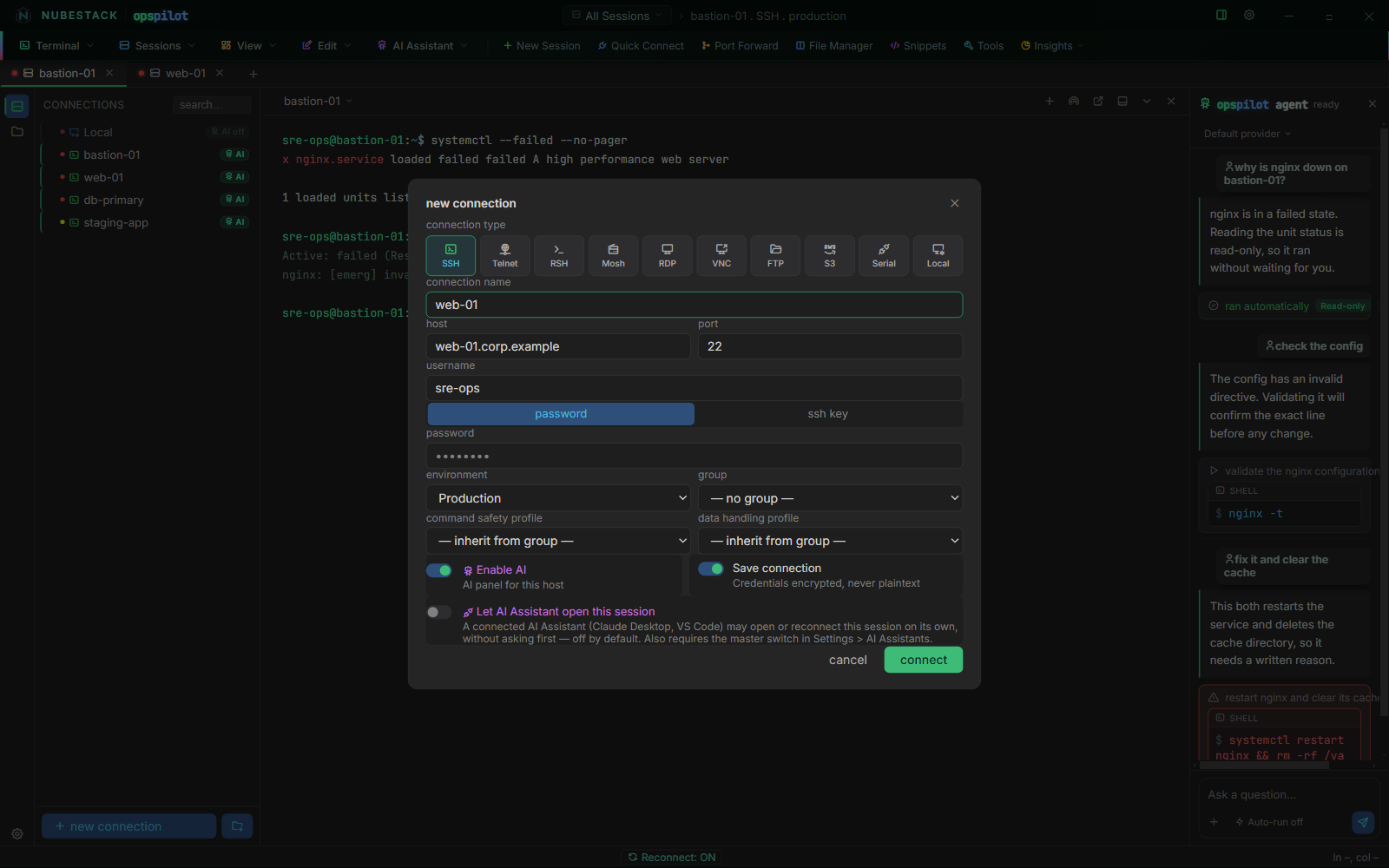
The new connection dialog. Enable AI is the toggle that decides whether the AI panel may see this host at all, and Let AI Assistant open this session — off by default — is a separate, stricter permission for external assistants.
Set two fields deliberately before you click connect:
- environment tags the connection (production, staging, development, or your own). Environments drive the colour-coding in the connections list, and they are how you scope safety policy later. Tag each connection for what it really is, so you do not have to reclassify a fleet afterwards.
- Enable AI controls whether the assistant may see this session at all. Leave it off for anything you are not ready to expose. A connection with it off is invisible to every model and every assistant.
Leave Save connection on so the entry persists — credentials are stored encrypted, never in plaintext. Click connect, and from then on double-click the saved connection to open it again.
Step 2 — Work normally
You now have a real terminal: full xterm emulation, GPU-accelerated rendering, search, copy and paste, and a session tab bar for working across several hosts at once.
Nothing about your normal workflow changes, and nothing in this step involves the AI. OpsPilot is a complete terminal before any AI is configured.
Step 3 — Choose how the AI reaches you
The AI can reach you by one of three routes, suiting different constraints. Open Settings → AI Providers for the first two.
- Fastest to try: OpenRouter. It has free tiers suitable for evaluation, so you can see the loop working before committing to a provider.
- Best for a locked-down environment: Ollama. Install Ollama, run
ollama pull llama3.3, then point OpsPilot athttp://localhost:11434. Nothing leaves the machine. Small local models are less precise at diagnosis than the large cloud models. - If you already pay for Claude, ChatGPT or Copilot: skip providers entirely and connect it as an AI Assistant over MCP. No second subscription, no API key.
For a provider, click Test to confirm the credentials work, then Save.
Step 4 — Ask something
Break something harmless first. This produces a real failure with no consequences:
Then type in the AI panel:
why did that fail?
You get a diagnosis and, usually, a proposed next command carrying a risk badge. Read it — the exact text you are about to run is shown to you. Click approve & run and watch it execute in the real terminal.
The command did not run until you clicked. A model's output is a proposal, and it becomes a real command only through an explicit approval event raised by your action. No provider, prompt, assistant or setting changes that.
If a 🔒 badge appears on the turn, redaction fired before anything left the machine. The number beside the padlock is how many values were replaced; hover it to see which categories were scrubbed.
Step 5 — Set your safety policy
Open Settings → Security → Command Safety and decide the following.
- Auto-run safe commands — off by default. Leave it off until you have watched the assistant work for a while. When you do turn it on, it applies only to Read-only steps.
- Dangerous command confirmation — on by default. Keep it on. It is what forces a typed, written reason on a High risk command rather than a single click.
- Dangerous patterns — the strings that must never run unnoticed on your estate.
A shipped default list already covers the obvious ones (
rm -rf,dd if=,mkfs,drop table,shutdownand more), so your job is to add what is specific to your estate.
Estate-specific patterns worth adding
Start from the things that are irreversible in your environment rather than in general:
Then your own: the cluster-wipe script, the deployment tool's teardown subcommand, the storage command that reinitialises an array. Patterns are plain, case-insensitive substrings — not regexes — so a fragment of the command is enough.
Matching a pattern can only promote a command to High risk. Nothing on your list can demote a command the model already flagged, so adding patterns can only make the gate stricter.
Where to go next
You have the loop working on one host. The next decisions are about scope: which connections get AI enabled, which groups carry which Command Safety profile, and whether a Data Handling profile needs tightening for your data.
See also
- Execution boundary & risk tiers — read this before rolling OpsPilot out to a team
- AI Providers — every provider that ships, and what each needs
- Offline with Ollama — the fully offline route in detail
- Connection types — the other nine things you can connect to